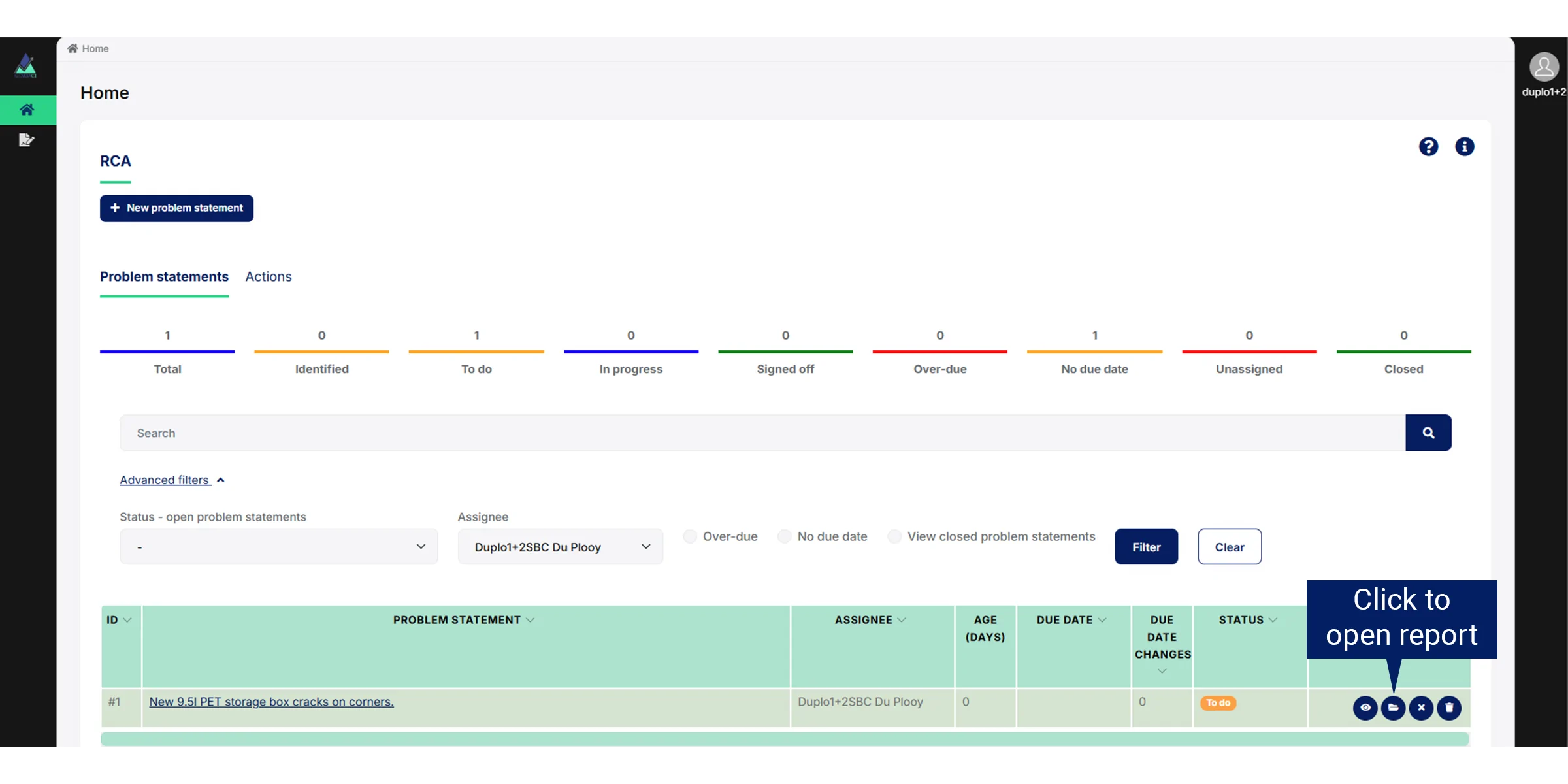
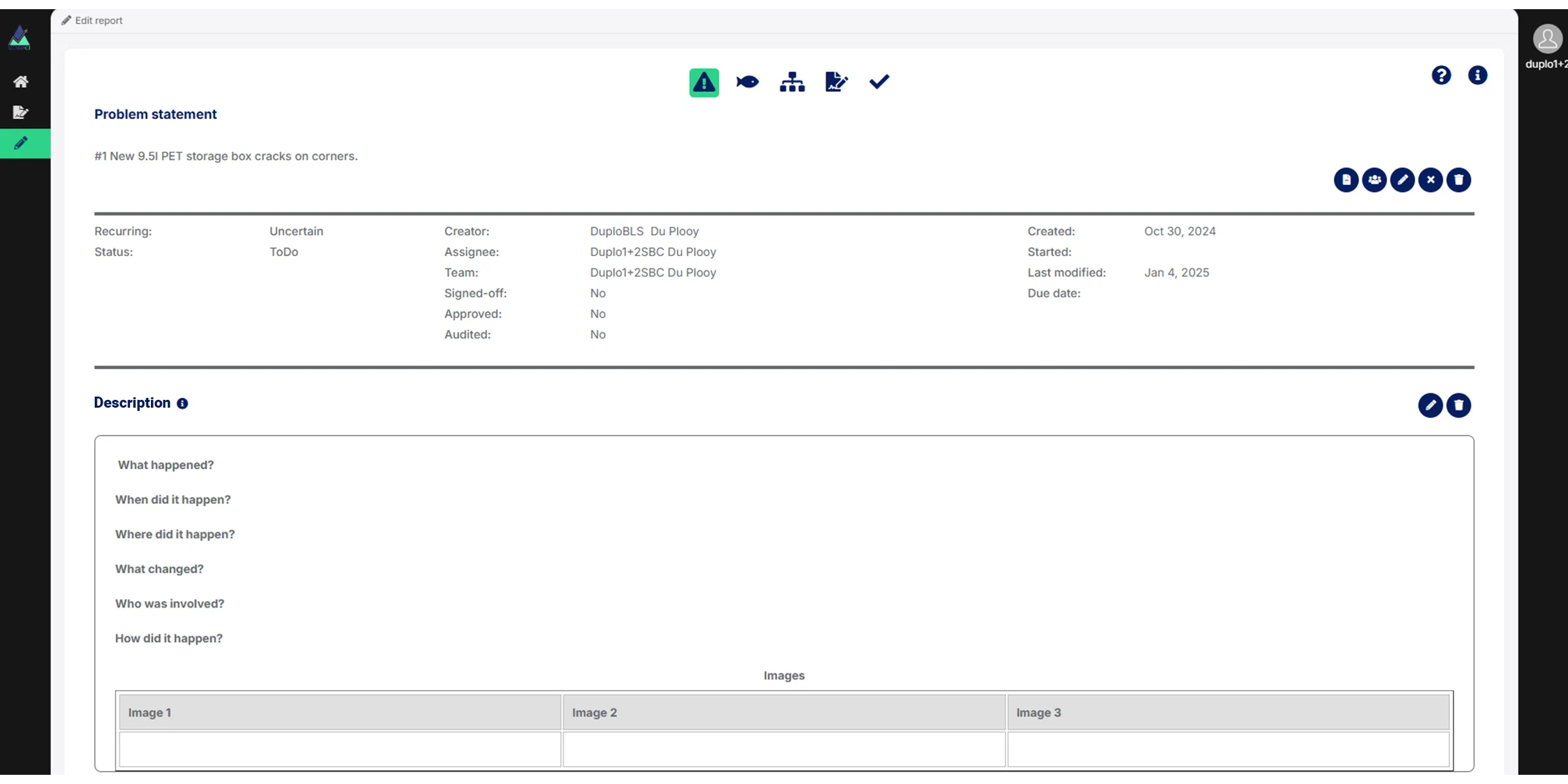
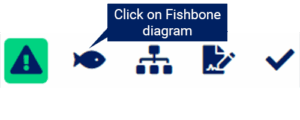
When you click on Open report for a specific problem statement the Open report page has a menu for the following pages:
Problem statement & Description.
Fishbone diagram.
5 Why analysis.
Action plan.
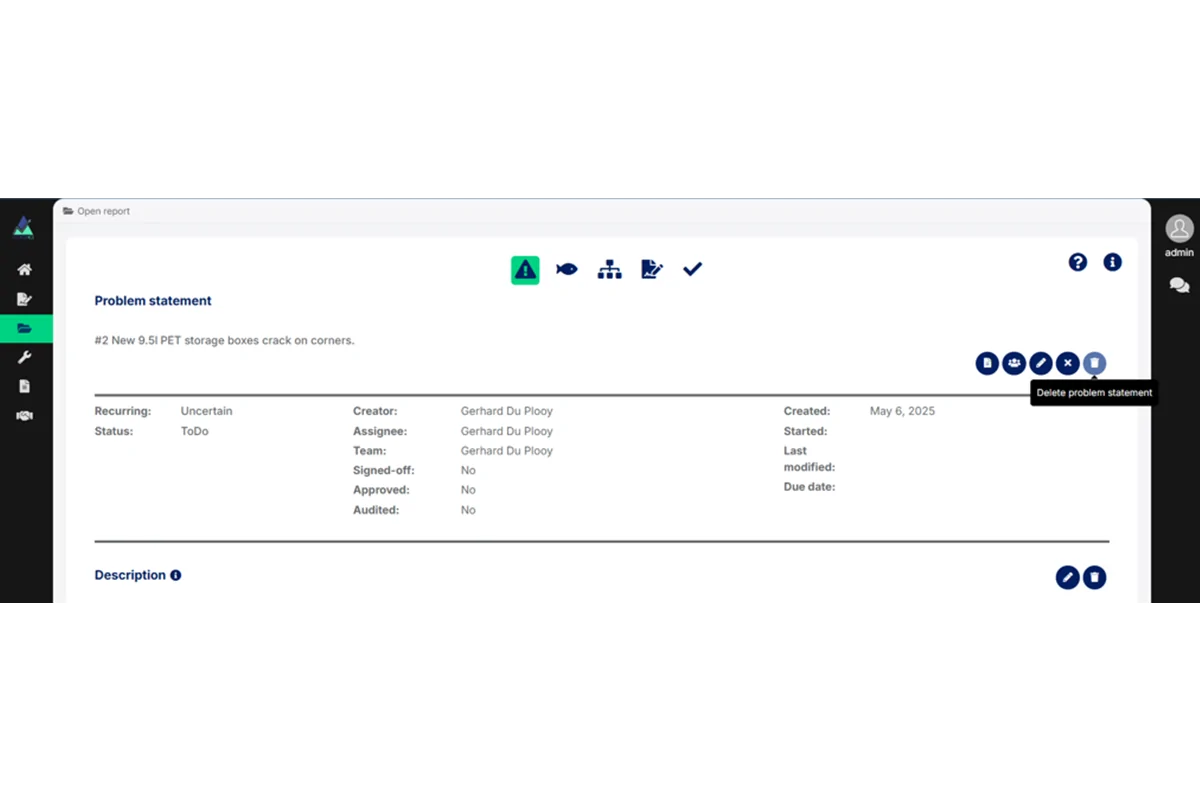
Problem statement & Description
Problem statement & Description is selected by default when you land on Open report.
When completed, this page provides the information about the problem you will use to complete the Fishbone diagram and 5 Why analysis.
As a new user, the main purpose of the RCATour is to familiarize you with the application as quickly as possible. Therefor, you may look at the Fishbone diagram, 5 Why analysis, Action plan and Sign-off pages first and then get more detail on the Problem statement & Description at https://gembaci.com/rca-tour/problem-statement-description/.
In an actual RCA you’ll first do a proper investigation of the problem before you move on to the other pages.
Fishbone diagram
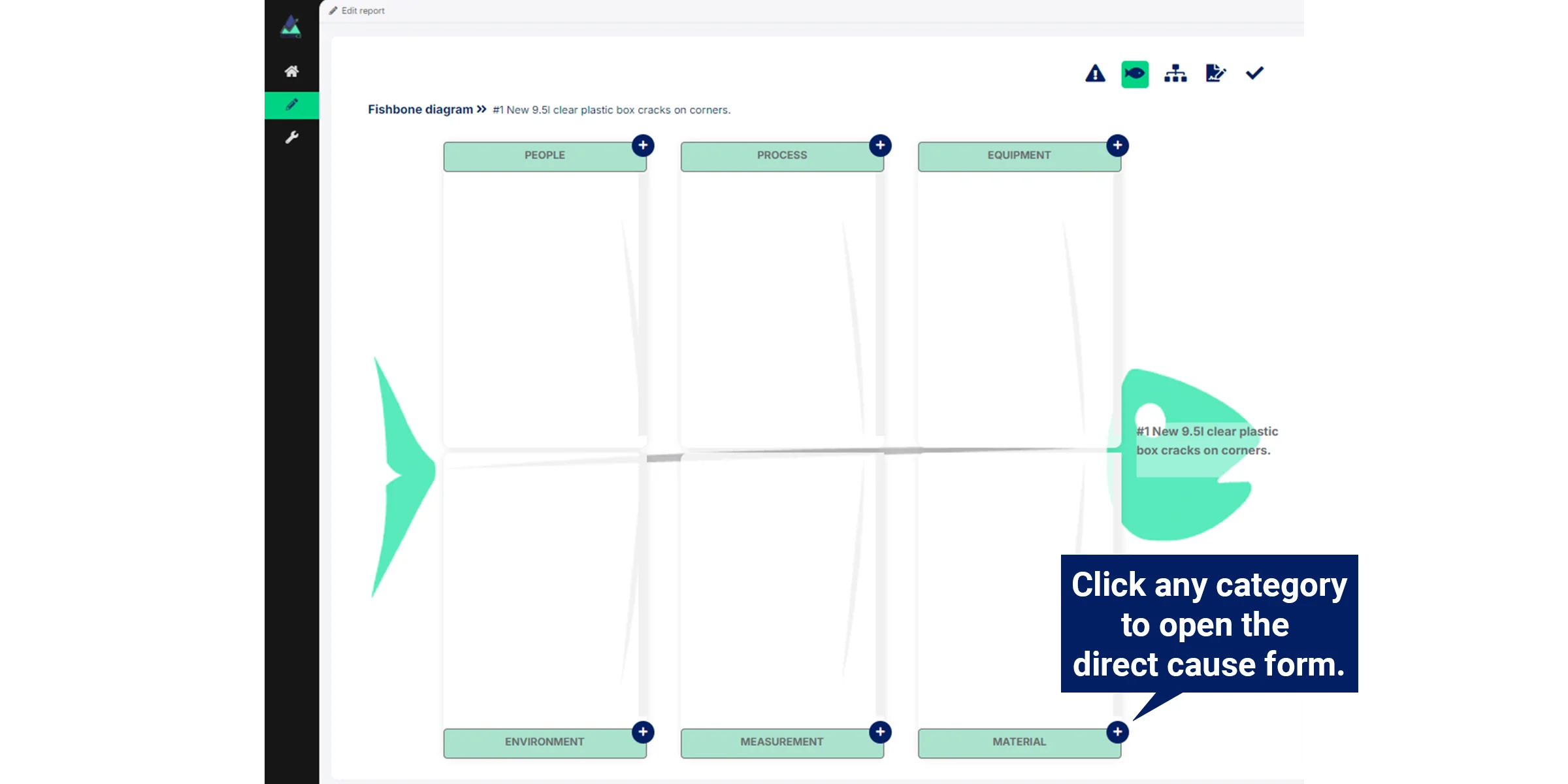
The Fishbone diagram is used to brainstorm the direct causes of the problem.
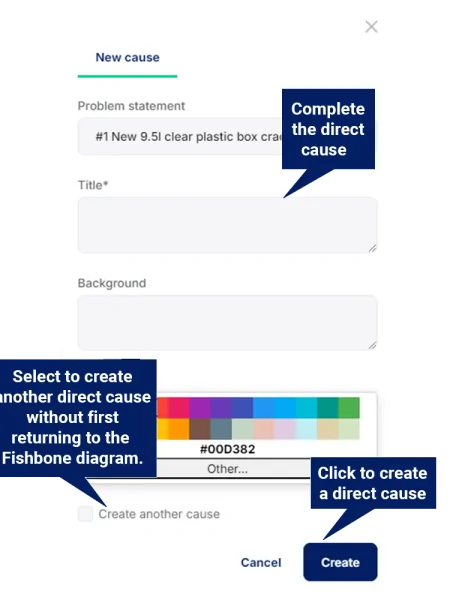
Add a direct cause
You can add the following direct causes:
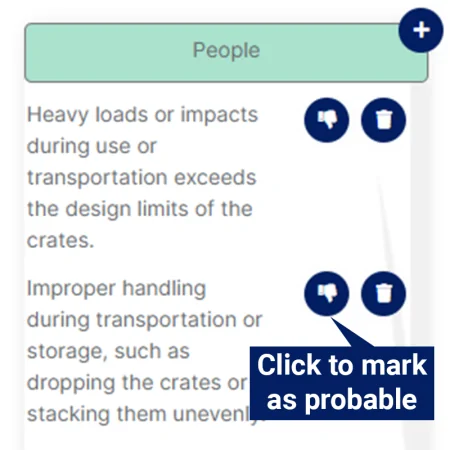
Category: People • Heavy loads or impacts during use or transportation exceeds the design limits of the crates. • Improper handling during transportation or storage.
Category: Material • Inconsistent material distribution.
Category : Process • Design does not adequately distribute stress.
Prioritize (probable / non-probable) When you are done, prioritize the most likely direct causes by marking them as Probable.
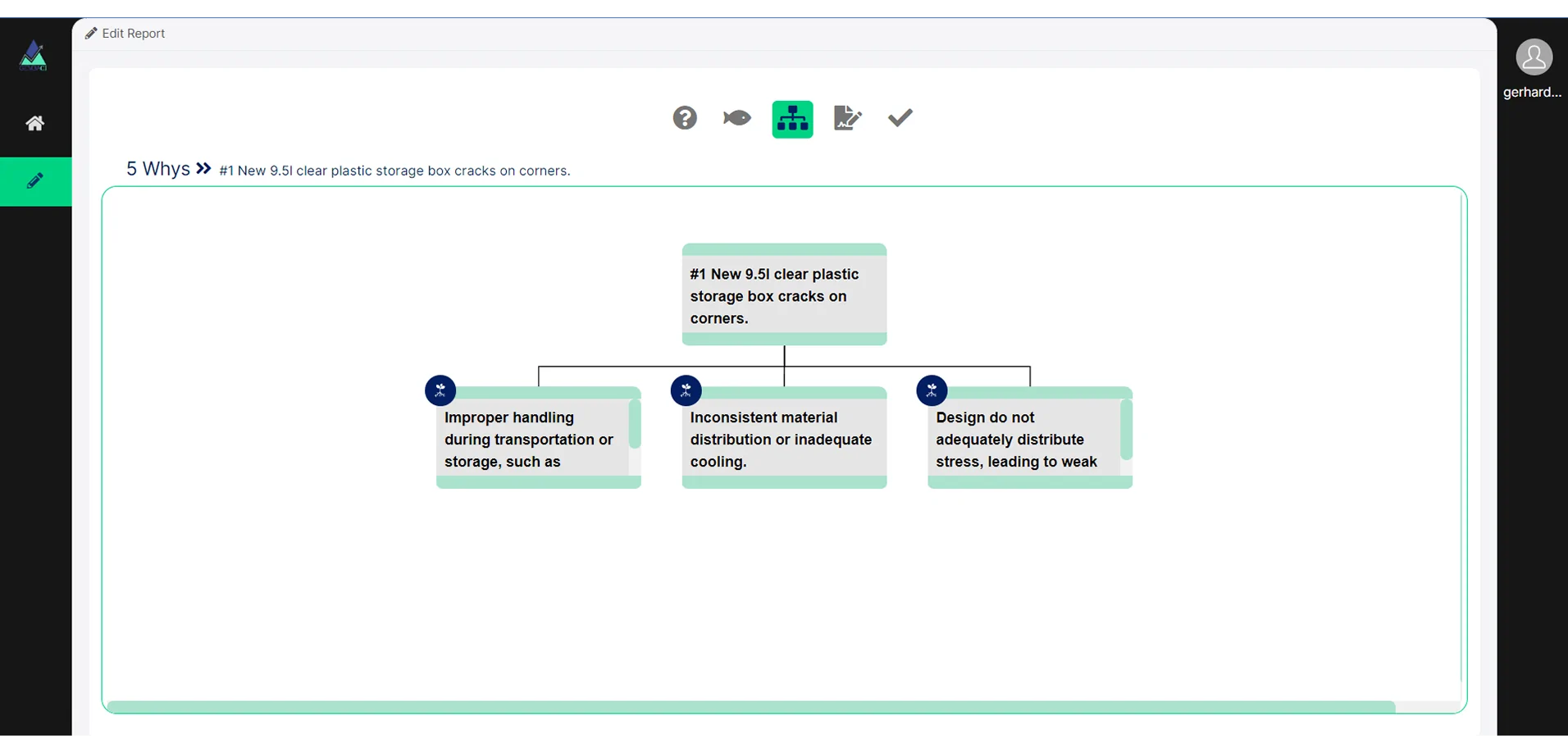
Mark the following direct causes as probable: • Improper handling during transportation or storage. • Inconsistent material distribution. • Design does not adequately distribute stress.
5 Why analysis
When you mark a direct cause as probable in the Fishbone diagram, it is automatically added to the 5 Why analysis.
The 5 Why analysis in Gemba RCA is presented as a Cause tree diagram.
When you role your mouse cursor over a cause, one or more of the following icons are displayed, depending on the cause you have selected:
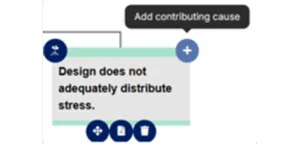
Add causes
Add more causes by clicking on the Add icon on “Design do not adequately distribute stress.”
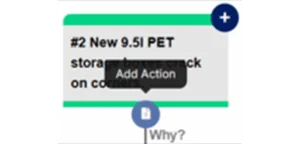
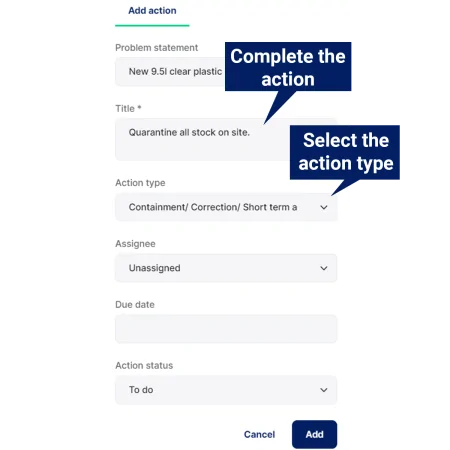
Add an action
Click on the Add action icon on the problem statement.
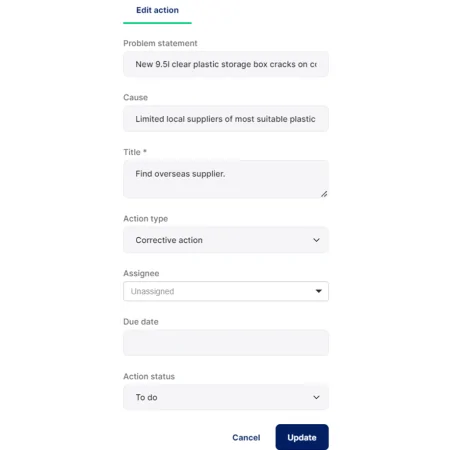
Complete the Title as “Quarantine all stock on site.”
Select the Action type as Containment and click Add.
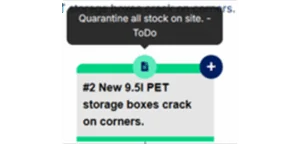
You can easily see if a cause has at least one action as a green Action icon is displayed at the top of the cause.
When you roll over the icon, the actions are displayed.
Click on the icon to add more actions. You can also add more actions from the Action plan (see below).
Mark as root cause
Click to mark the cause as the root cause.
You can easily see if a cause has been marked as a root cause as the root cause icon becomes green.
Every cause chain must have:
a root cause; and
at least one action,
before the RCA can be signed off
(see Sign-off below).
Action plan
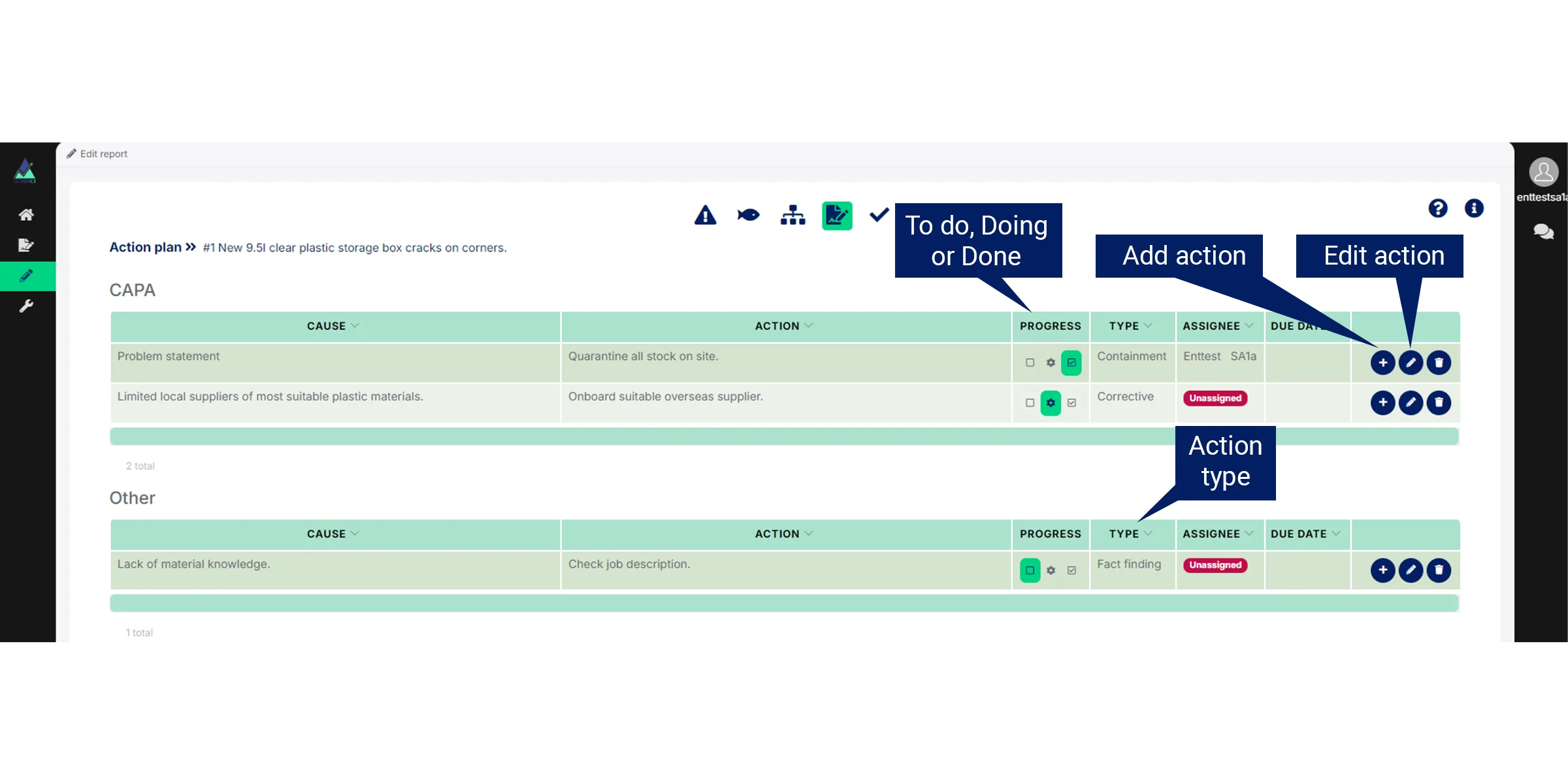
Actions from Problem statement and 5 Why analysis are added to the Action plan.
Action progress
You can update the progress on the action by marking it as To do, Doing or Done in the table.
All:
root causes must have at least one action; and
actions must be in Done status,
before the RCA can be signed off (see Sign-off below).
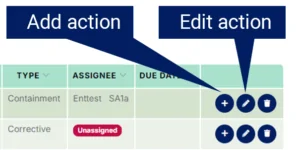
Add action & Edit action
You can add new actions or edit existing actions from the Action plan.
Only the Assignee of an RCA and the Admin can sign the RCA off.
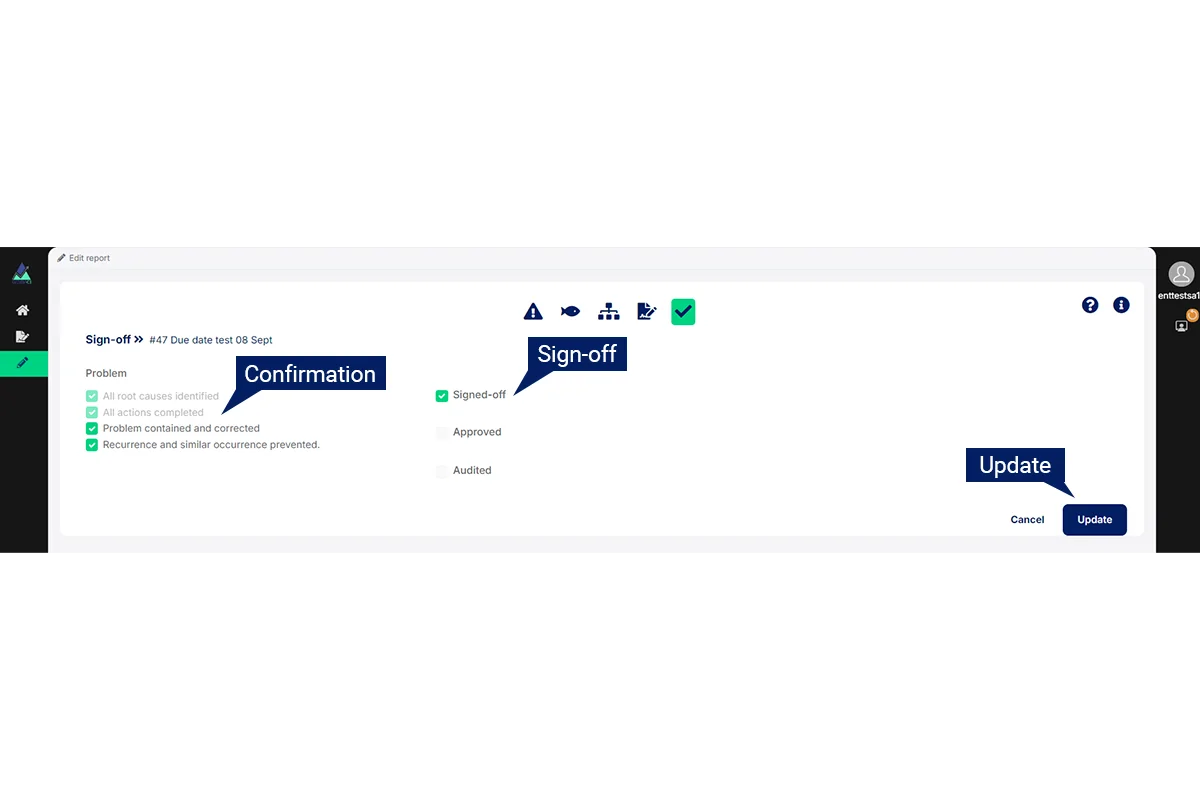
Confirmation
Before the RCA can be signed of the system will check that:
All cause chains have a root cause.
All root causes have at least one action.
All actions are completed.
The Assignee must then confirm that:
the problem was contained and corrected; and
recurrence and similar occurrence were prevented
by ticking the two boxes and clicking on Update.
Signed-off
Once the Confirmation has been done, the Assignee can sign the RCA off.
Close
Depending on organizational policy, once the RCA is signed-off by the Assignee it can be closed from Problem statement, with or without it first being:
approved; and/or
audited.
Delete problem statement
During the trial your organization is limited to 3 active RCA’s. Please delete your RCA from Problem statement & Description.